
The Konica printers have now been taken over by stuvus as part of the kopier[lädle]! See further information below.
Do you need to print out a summary, a worksheet, a handout or a text? Or hand in your term paper, thesis or technical drawing in printed form?
There are various printers on both campuses where you can print independently.
Is the document a little longer or should it be properly bound? Then go to the kopier[lädle] of stuvus on the Vaihingen campus. Here you will also find different paper thicknesses, different bindings and other stationery.
Campus Stadtmitte
- K2: Copy room 1st basement
- K1: at the left staircase on the ground floor
- Vortragssaal University Library
Campus Vaihingen
- Universum learning room
- V 57: TIK computer centre (mezzanine between ground floor and 1st floor)
- Printer room (3rd level) University library
Register

The printer software is only accessible from the university WLAN (including uni-stuttgart-open)!
To print the documents, please register here for the Papercut printer software: https://drucken.stuvus.uni-stuttgart.de
- Open website drucken.stuvus.uni-stuttgart.de
- Select language
- Select “Register as a New User”
- Fill out form
- Enter real first and last name
- Enter functioning e-mail
- Select user name for logging on to the printer
- Enter password
- Repeat password
- Confirm e-mail address
- An e-mail with a link will be sent, call it up
- Log in with the user name (not the e-mail)
- A message appears about the successful confirmation
Prices
A4: greyscale single-sided: €0.05 per page
A4: greyscale double-sided: €0.04 per page
A4: colour single-sided: €0.08 per page
A4: colour double-sided: €0.07 per page
A3 double the price of A4
Top up credit
- Open the Papercut website drucken.stuvus.uni-stuttgart.de and log in (university WLAN only)
- Select menu item ‘Add credit
- Select amount
- Click on top up and pay via Paypal
- The credit will be credited automatically shortly
Alternatively, credit can be topped up on site at the Kopier[lädle] in cash or by card.
The topped-up credit cannot be refunded.
Printer control
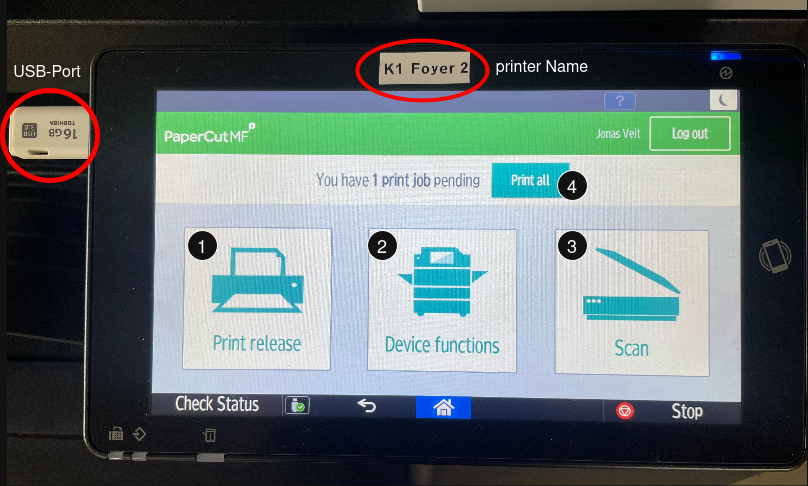
You will need the printer name (found at the top) to release prints directly from the print website). You can insert USB sticks at the top left of the display.
- Under ‘Print release’ you can release the prints that you have sent via WebPrint or Mobility Print on this device. In particular, you can also specify further configurations here, such as greyscale/colour and double-sided printing.
- Under ‘Device functions’ you can use the native device functions. This includes copying, printing from USB devices and scanning to USB devices.
- Under ‘Scan’ you can send scans directly to your Papercut account email. If this option is not displayed, you will need to verify your email address.
- Here you can release all prints at once in the same way as point one.
Printing
Always make sure you have enough credit before printing. If not, you can top it up as described above.
If you want to print in grayscale instead of color for the reduced price, always select this explicitly on the printer when approving the print job. If the PDF files are incorrectly formatted or even just a single pixel of color, they will otherwise be printed in color and billed accordingly.
Mobility Print
Mobile printing is the most reliable way to print and offers the most configuration options.
- Set up Mobility Print: https://drucken.stuvus.uni-stuttgart.de:9164/setup
- Print as described there
- Go to printer
- Log in to printer
- Hang up ECUS (alternatively, most other chip cards also work)
- When logging in for the first time, log in with website access data
- Hang up ECUS (alternatively, most other chip cards also work)
- Print release
- Select files
- Select greyscale
- Select double-sided
- Log out
Web-Print
Web-Print unfortunately only allows A4 printing. If you want to print A3, this is currently only possible via USB.
- Upload file
- Login in: drucken.stuvus.uni-stuttgart.de
- Online printing → Submit print job → Upload document → Upload and finish
- Go to printer
- Log in to printer
- Hang up ECUS (alternatively, most other chip cards also work)
- When logging in for the first time, log in with website access data
- Hang up ECUS (alternatively, most other chip cards also work)
- Print release
- Select files
- Select greyscale
- Select double-sided
- Log out
print from USB Stick
- Go to the printer
- Log in to printer
- Hang up ECUS (alternatively, most other chip cards also work)
- When logging in for the first time, log in with website access data
- Hang up ECUS (alternatively, most other chip cards also work)
- Insert USB stick
- Device functions (x2) -> Print/Scan (storage device) -> Print from storage device
- Select file
- Configure printing
- Log out, remove USB stick
Jobs can also be released on the print website instead of directly on the printer. Make sure you select the correct printer!
Scan
Scan to mail
- Go to the printer
- Log in to the printer
- Hang up the ECUS (alternatively, most other chip cards also work)
- When logging in for the first time, log in with website access data
- Hang up the ECUS (alternatively, most other chip cards also work)
- Select scan
- Configure scanning under settings
- Start scanning
- Files are sent to the stored e-mail address
- Log out
Scan to USB stick
- Go to the printer
- Log in to the printer
- Hang up the ECUS (alternatively, most other chip cards also work)
- When logging in for the first time, log in with website access data
- Hang up the ECUS (alternatively, most other chip cards also work)
- Insert USB stick
- Device functions (x2) -> Print/Scan (storage device) -> Scan to storage device
- Select storage location
- Configure scanning
- Start scanning
- Files are saved on the USB stick
- Log out, remove USB stick
The printers are currently still under construction. We will continue to add to this page as soon as there is more information/possibilities for printing from other devices!
Problems?
If a document is not printed or only partially printed, the software almost always recognizes this and posts back the amount paid. You can check this in the menu under “Bookings”.
Please contact info@kopierlaedle.de